Photo + dance reference → your dance video
AI Dance Generator: Make a Photo Dance
Turn a still photo into a dancing video. Upload your character image and a short dance reference, then use AI motion transfer to bring the movement to your photo.
Use a clear full-body photo and a 3–6 second dance clip. Sign in and use credits to generate with Kling Motion Control.
From one photo to a dance video
Compare the character photo, the movement reference and the generated result. This example uses an original AI-generated adult character and an AI-generated dance reference, tested with Kling 3.0 Motion Control at 720p.
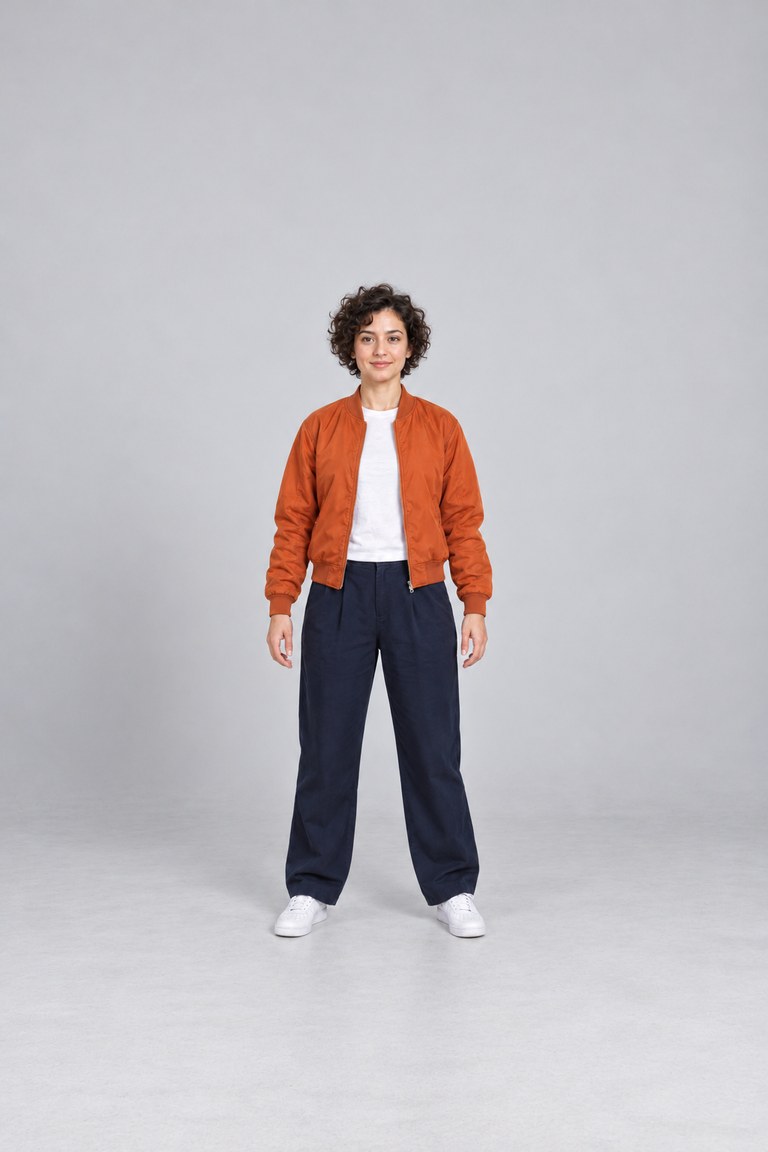
Watch the arm gestures, footwork and character details.
Example settings: 720p, character orientation set to Video. Prompt: “Keep the orange jacket, face and studio background consistent. Follow the reference dance with natural arm and leg movement.” Results vary; fast moves, hidden hands and crossed limbs can introduce artifacts.
How to make a photo dance
1. Upload your character photo
Choose one person with their whole body visible. Use a JPG or PNG under 10 MB, with each side between 341 and 6000 pixels. Keep the face, hands and feet clear.
2. Add a short dance reference
Upload a 3–6 second MP4 or MOV under 100 MB. Use one dancer, a steady camera and a similar body framing. Trim longer clips before uploading.
3. Generate and review
Start at 720p with character orientation set to Video. An optional prompt can describe details to keep. Check the displayed credit cost, generate, then review the face, hands and footwork before downloading.
For the photo, use an aspect ratio between 2:5 and 5:2. A front-facing, full-body portrait and a simple side-step dance are a useful first test.
Choose the right motion for your photo
For cleaner movement
Match a full-body photo with a full-body reference. Keep one dancer in frame, leave space around the arms and legs, and begin with slower moves. Similar camera angles make the motion easier to follow.
When to try a different tool
If you only have a portrait and want a subtle expression or camera move, try Animate Photo AI. For motion described in words without a reference clip, use Image to Video. For other reference-driven transformations, see Video to Video.
AI dance generator questions
How does the AI dance generator work?
Kling Motion Control uses your character photo for the subject and a reference video for the movement. Upload both files, choose a resolution, and generate a new video that follows the dance. It is a motion-transfer tool, so a reference clip is required.
Can I make a photo dance without a reference video?
This page requires both a character photo and a dance reference. If you want to describe motion with a text prompt instead, use the Image to Video tool. Prompt-based motion will not reproduce a specific dance as closely as a reference-driven workflow.
What photo and video files should I upload?
Use one clear full-body character photo in JPG or PNG format, under 10 MB, with each side between 341 and 6000 pixels and an aspect ratio between 2:5 and 5:2. On this tool, the dance reference must be a 3–6 second MP4 or MOV under 100 MB. Keep the dancer and their limbs visible throughout the clip.
Is the AI dance generator free?
Generation requires sign-in and sufficient Animate credits. The form displays the credit cost for the selected resolution before you generate. You can view and download the demo inputs without generating a video.
Will it keep the face, clothes and every dance move exactly the same?
The model aims to preserve the character and follow the reference motion, but exact identity and choreography are not guaranteed. Fast turns, crossed limbs, occlusion and mismatched framing can cause artifacts. Review the generated video, especially the face, hands and feet.
Which dance references work best?
Start with a single dancer, a fixed camera and simple, slower movements. Match the framing of the character photo to the reference. A full-body photo works best with a full-body dance clip; tight portraits are less suitable for full-body choreography.
Does it automatically add music or make a lip-sync video?
This workflow focuses on transferring body movement. Do not rely on it to add music, synchronize a song or create lip sync. Add your chosen audio in a video editor and review the timing after generation.
Can I use my own photo and dance clip?
Yes. Upload material you own or have permission to use, including permission from the person pictured. The downloadable demo uses an original AI-generated adult character and an AI-generated dance reference.